














Permission rules
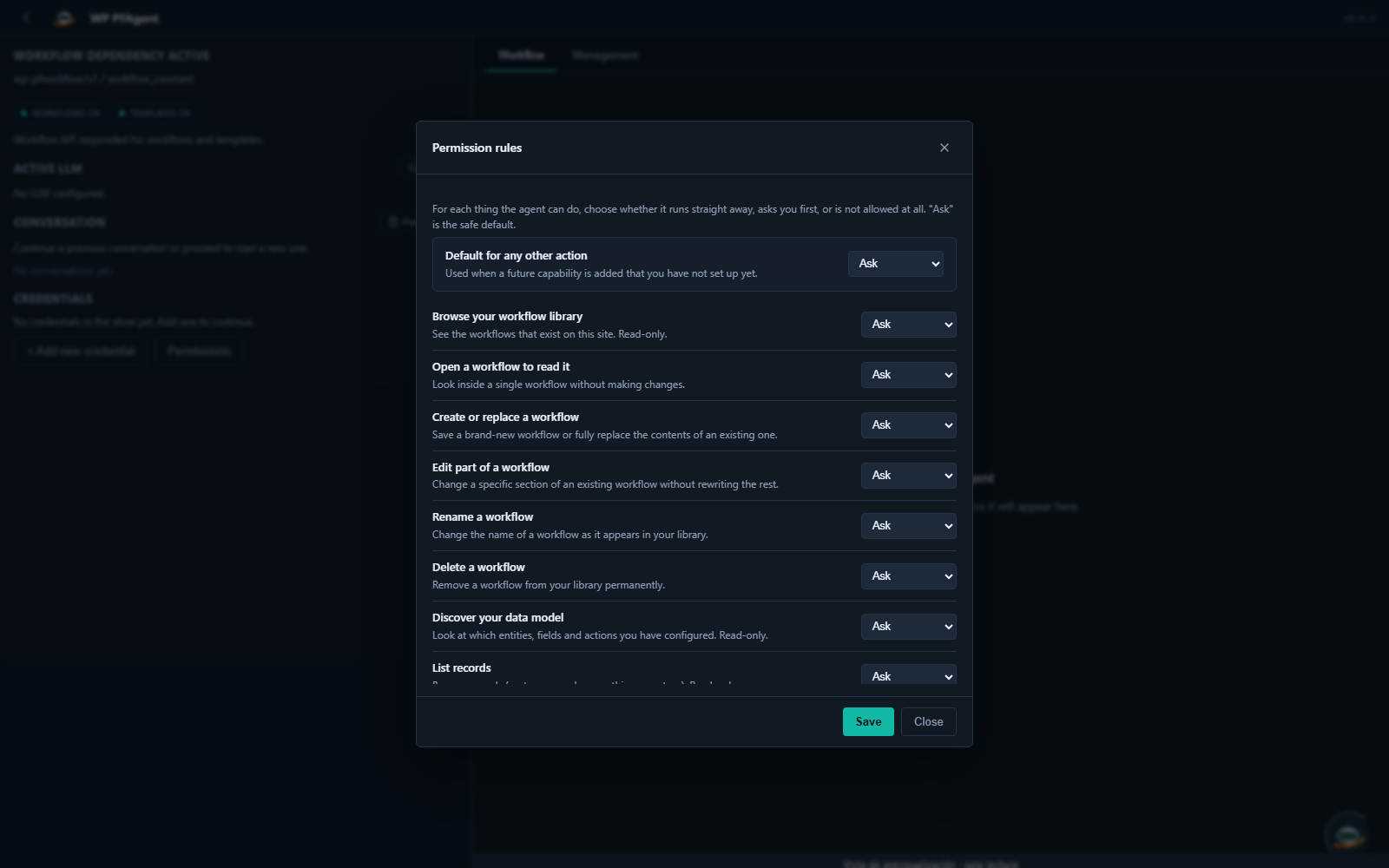
Control which actions the agent can perform without asking you. Permission rules let you fine-tune the trade-off between automation and oversight.
How permission rules work
Every action the agent wants to perform goes through the rules engine before executing. Three possible verdicts:
| Verdict | Behaviour |
|---|---|
allow | Execute immediately, no confirmation prompt. |
deny | Refuse to execute and tell the agent to try a different approach. |
ask | Show the side-effect confirmation card and wait for your decision. |
Rule format
Each rule has:
tool— the action it applies to (or*for everything).verdict—allow,deny, orask.when(optional) — a set of conditions that must all match for the rule to fire.
Conditions can match on the kind of action, on a target path, or on any property of the action's arguments via dotted notation (e.g. payload.status). Globbing (*, ?) is supported in condition values.
Example
[
  {"tool": "*", "verdict": "ask"},
  {"tool": "workflow_apply", "verdict": "allow",
   "when": {"kind": "read"}},
  {"tool": "pfm_apply", "verdict": "allow",
   "when": {"kind": "record", "action": "get"}},
  {"tool": "workflow_create_variable", "verdict": "allow"}
]
This configuration:
- Asks for confirmation on everything by default.
- Allows the agent to read workflows without asking.
- Allows the agent to read records without asking.
- Allows the agent to create variables without asking.
Managing rules
- Admin UI: Setyenv → Agent → Settings → Permission rules.
- REST:
GET / PUT /pfw/v1/agent-runtime/permission-rules.
Setting
confirmation gate entirely. Only do this in environments where
you fully trust both the agent and every account that can talk
to it.
* to allow skips the side-effectconfirmation gate entirely. Only do this in environments where
you fully trust both the agent and every account that can talk
to it.